
uni-app iOS Offline Packaging on Windows: Build ipa Locally
Last updated
uni-app iOS offline packaging works locally on Windows. Install the KXBuild plugin for HBuilderX, import the iOS offline SDK that matches your HBuilderX version, enter the AppKey and certificates, and run the app on your iPhone. Page edits reach the phone in seconds, and a Release .ipa for App Store Connect is one menu command away, with no cloud build queue. You need an Apple Developer account, an iPhone and a cable, and KXBuild installed. The first run-through takes about an hour.
Why do uni-app iOS offline packaging locally?
HBuilderX cloud packaging saves you from setting up Xcode yourself, but once a project gets into frequent debugging, a few things start to hurt.
- At peak times there’s a queue. A build can take a few minutes or much longer.
- Cloud packaging has a usage limit, which is easy to hit when you’re debugging native features.
- Every change to the native settings in manifest.json, such as permission descriptions, modules or icons, means building a new custom base (custom debug runtime) or release package.
Local packaging moves this step back to your own PC. DCloud’s official offline packaging requires Xcode on a Mac. With KXBuild you do the same on Windows. Building, installing and producing the .ipa all happen on your machine, and there’s no queue no matter how many times you build.
How do you get the offline SDK and AppKey?
Download the iOS offline SDK
Download the SDK zip from DCloud’s iOS offline SDK download page. Don’t unzip it. The plugin asks you to select this zip on the first run. KXBuild supports offline SDKs for HBuilderX 5.13 and later.
The SDK version must match your HBuilderX version. If they differ, the app reports a version mismatch or shows a blank white screen after launch. You import each HBuilderX version’s SDK once, so import the new SDK whenever you update HBuilderX.
Get an offline packaging AppKey
The DCloud offline SDK checks the AppKey at launch. Without it, the app shows an AppKey error as soon as it opens. The AppKey is tied to the bundle ID, so decide on the app’s bundle ID first (for example com.example.myapp). It must also match the App ID you register in the Apple Developer account.
Sign in to the DCloud developer center. Under “应用管理” (app management), open this uni-app app, go to “各平台信息” (platform info), add the iOS platform and enter the bundle ID. After saving, create the offline packaging key.
Register the App ID in your Apple Developer account
Sign in at developer.apple.com and create an App ID under Identifiers in Certificates, Identifiers & Profiles, using the same bundle ID as above. If the app uses push notifications, Sign in with Apple, associated domains or similar, check the matching capabilities here so that provisioning profiles you create later include those entitlements. The iOS capabilities declared in manifest.json are written to the project’s entitlements, so the two must agree.
What needs to be set in manifest.json?
Packaging reads the app settings from manifest.json. Set the items below in HBuilderX’s visual editor, and every run picks them up.
- Under “基础配置” (basic settings), sign in to your DCloud account and get an AppID. The pages can’t be compiled without one.
- App name, version name and version code. The version code must be higher than the last one on every upload to App Store Connect.
- Under “App 图标配置” (app icon settings), generate all iOS icons from one 1024×1024 image.
- Under “App 权限配置” (app permission settings), fill in the iOS privacy usage descriptions. They’re required whenever you use the camera, photos or location. Without them the app crashes when it calls those features, and App Review rejects it.
- Under “App 模块配置” (app module settings), check the modules you use, such as payments, push or maps, and fill in their parameters. Packaging installs the matching SDK libraries with CocoaPods.
For Vue 2 projects, HBuilderX can’t be installed in a folder whose path contains parentheses, such as C:\Program Files (x86)\HBuilderX. This is a limit of HBuilderX’s own compiler plugin. Move the whole HBuilderX folder to a path like D:\HBuilderX, or switch the project to Vue 3 in manifest.json.
How do you install the HBuilderX plugin?
- After installing KXBuild, run
kxbuild doctoronce. It checks and sets up what building needs; if HBuilderX is already on your computer, it installs the plugin too. Runningkxbuild doctoragain later updates the plugin to the latest version. - Quit HBuilderX completely and open it again.
If the menus described below don’t appear, download kxbuild-hbuilderx-plugin.zip from the uni-app stack page, unzip it into the plugins folder of your HBuilderX installation so you get plugins\kxbuild-hbuilderx-plugin, then open HBuilderX again.
Now right-clicking a uni-app project in the Project Manager shows a “KXBuild iOS” menu. With a project selected, commands marked (KXBuild) also appear in the top “运行” (Run) and “发行” (Publish) menus.
How do you run on your iPhone for the first time?
Running on a device needs signing. In your Apple Developer account, create an Apple Development certificate and a Development provisioning profile that includes this iPhone, then put the .p12 and .mobileprovision in the certificate folder. See iOS code signing on Windows.
Connect the iPhone with a cable. Unlock the phone and tap “Trust This Computer”, then turn on Developer Mode in Settings > Privacy & Security > Developer Mode. The phone restarts once. For details, see Device setup.
Select the project in the Project Manager and choose “运行 → 运行到 iPhone 真机 (KXBuild)” (Run on iPhone). The first time, the plugin asks for two things and remembers them.
- Bundle ID and offline packaging AppKey: enter the bundle ID you used for the AppKey, and the AppKey. They’re saved in the project’s nativeResources\ios\Info.plist. To change them later, right-click the project → “KXBuild iOS” → “设置 Bundle ID 与 AppKey” (Set Bundle ID and AppKey).
- iOS offline SDK: select the SDK zip you downloaded. To switch SDKs later, right-click the project → “KXBuild iOS” → “导入 iOS 离线 SDK” (Import iOS offline SDK).
The plugin then compiles the pages, generates the iOS project, builds the app, installs it on the phone and launches it. Progress shows in the HBuilderX console. The first run takes a minute or two.
Any other keys in nativeResources\ios\Info.plist are merged into the app’s Info.plist on every run. For example, you can put permission descriptions that manifest.json doesn’t cover there. You can open this file in VS Code, where KXBuild’s property list editor shows it as an editable table.
How do you update the app after changing front-end code?
Keep writing pages, styles and JS in HBuilderX as usual. After a change, pick the command that matches it.
| What changed | What to do |
|---|---|
| Pages, styles, JS | 运行 → 推送页面到 iPhone (KXBuild) (Push pages to iPhone). Takes a few seconds and keeps the app’s data |
| Native settings in manifest.json (modules, permissions, icons, version) | 运行 → 运行到 iPhone 真机 (KXBuild) (Run on iPhone) |
| nativeResources\ios\Info.plist | Run on iPhone |
| You updated HBuilderX | Import the matching offline SDK, then Run on iPhone |
| You switched to another iPhone | Run on iPhone |
Push pages to iPhone replaces only the app’s pages on the phone and relaunches it. Nothing is reinstalled, so sign-in state and local storage stay. If the pages also changed, Run on iPhone uninstalls the old version before installing, which clears the app’s local data. When you’ve only changed pages, pushing is the easier way.
After changing native settings, just run again. There’s no new custom base to build and no cloud queue to wait in.
When do you need VS Code for native breakpoints?
Debug page JS with the tools built into HBuilderX. To set breakpoints in native code or check the icons, open the project’s unpackage\kxbuild folder in VS Code. That’s the Xcode project the plugin generates when it runs.
- Breakpoint debugging: select the iPhone in the KXBuild view and press F5. Once the app is open on the phone, you can set breakpoints in native code. The first time you debug a given iOS version, device symbols (several GB) download automatically, only once. Keep pushing page changes from HBuilderX. Reinstalling with F5 in VS Code doesn’t update the pages.
- Checking icons: the app icons are in HBuilder-Hello\HBuilder\Images.xcassets. In the Explorer, right-click this .xcassets folder and choose “KXBuild: Open Asset Catalog” to see whether every icon size is there. Click “KXBuild: Compile-check Asset Catalog” in the title bar, and problems such as missing sizes or an App Store icon with an alpha channel are listed in the Problems panel.
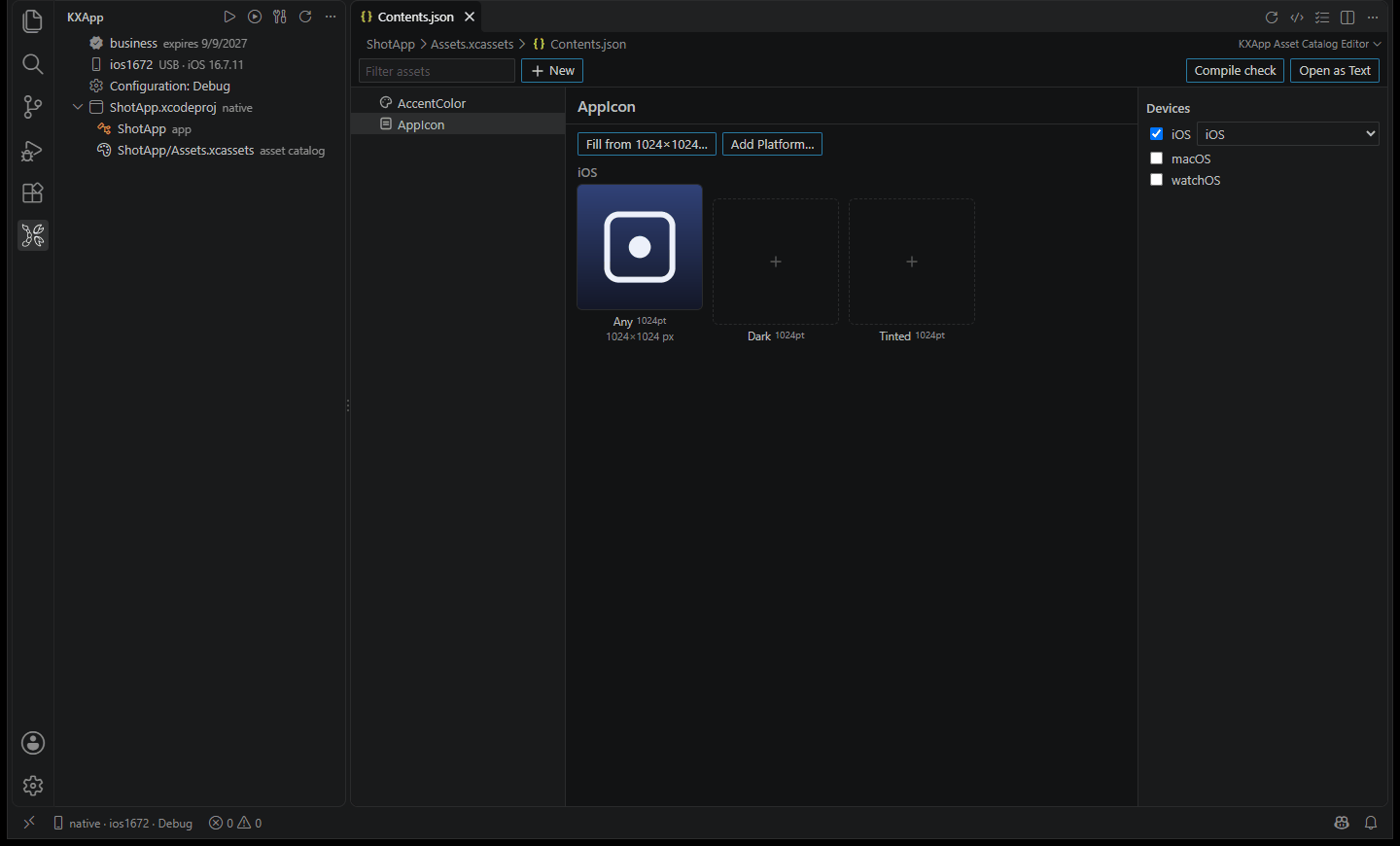
Don’t edit files in unpackage\kxbuild by hand. They’re overwritten on the next run. Change icons in “App 图标配置” in HBuilderX, and keep any other settings you need in manifest.json or nativeResources.
How do you build the uni-app .ipa and submit it?
Before submitting, get three things ready: an Apple Distribution certificate and an App Store provisioning profile from your Apple Developer account, both in the certificate folder, and the app created in App Store Connect with the same bundle ID as the project.
Raise the version in HBuilderX, then choose “发行 → 生成 iOS App Store ipa (KXBuild)” (Build iOS App Store .ipa). The plugin builds with the Release configuration and signs it with the Apple Distribution certificate and App Store provisioning profile, and the .ipa, named after the app, is created in the project’s unpackage\release\ipa.
On Windows, sign in to your developer account in Appuploader and upload the .ipa. After Apple processes it, it shows up on the TestFlight page in App Store Connect. Install it on your own phone to check it, then select the build on the App Store page and submit it for review. For the full steps, see Release and App Store submission.
How do you package from the command line without the plugin?
To package from a script or CI, use the command line. Run these in the uni-app project folder. You only need the first two once.
1uniapp2xcode sdk import D:\Downloads\iOS-SDK.zip
2uniapp2xcode config --project . --bundle-id com.example.myapp --dcloud-appkey YOUR_APPKEY
3uniapp2xcode --project . --sdk auto --output .\unpackage\kxbuild --update
4kxbuild build .\unpackage\kxbuild\HBuilder-Hello\HBuilder-Hello.xcworkspace -s HBuilder -c Release --export app-store
The third command exports the Xcode project. With –update, when only the pages changed, only the pages are replaced, which takes a few seconds. The fourth builds with the Release configuration and signs it for the App Store, and the .ipa is created in unpackage\kxbuild\HBuilder-Hello\build. Open HBuilderX before exporting from the command line so it’s found automatically. If it isn’t found, pass the install folder with –hbx. For other options, see the uniapp2xcode command reference. The plugin and the command line run the same uni-app iOS offline packaging flow, and both produce an .ipa you can upload to App Store Connect.
FAQ
Why aren’t the KXBuild commands in the right-click or top menu?
The top-menu commands appear only after you select a uni-app project in the Project Manager. If the right-click menu is missing too, check that package.json sits directly in plugins\kxbuild-hbuilderx-plugin, not inside an extra folder, then quit HBuilderX completely and open it again.
Why does the app show an AppKey error as soon as it opens?
The AppKey is missing, or the bundle ID you applied for the AppKey with doesn’t match the one entered in the plugin. Check the iOS platform’s package name in the DCloud developer center, fix it with right-click → “KXBuild iOS” → “设置 Bundle ID 与 AppKey”, then Run on iPhone again.
What causes a version mismatch or blank white screen after launch?
The offline SDK and HBuilderX versions don’t match. Download the SDK for your current HBuilderX version, import it with right-click → “KXBuild iOS” → “导入 iOS 离线 SDK”, then Run on iPhone again.
What if it says you aren’t signed in or the AppID doesn’t exist?
HBuilderX needs a DCloud account to compile the pages. Sign in in HBuilderX, open “基础配置” in manifest.json, click “获取” (get) or “重新获取” (get again) next to the AppID, then run again.
Why does the phone still show the old pages?
Update with Push pages to iPhone or Run on iPhone. Reinstalling with F5 in VS Code alone doesn’t update the pages.
Why are sign-in state and local storage gone after running?
When the pages changed, Run on iPhone uninstalls the old version before installing. When you’ve only changed pages, use Push pages to iPhone and the data is kept.
Why are some modules reported as skipped?
The current offline SDK doesn’t have that module, or the module’s own library can’t be linked. For example, real-person verification in the 5.26 SDK is missing a dependency library. The other modules are packaged as usual. The skipped module needs a fixed SDK from DCloud.
Why does the app crash when opening the camera or photos?
Info.plist is missing the matching privacy description. Add the iOS privacy usage description under “App 权限配置” in HBuilderX, or put it in nativeResources\ios\Info.plist, then Run on iPhone again.
What if installing on the phone fails?
This is usually a signing problem: the provisioning profile doesn’t include this phone’s UDID, or the certificate type is wrong. Check against Certificates and signing. For other errors, see Troubleshooting.